Remove a repost on TikTok
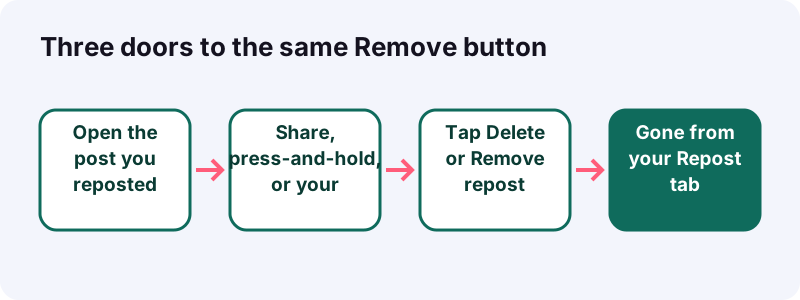
- Open the repost. In the TikTok app, go to the post you reposted. Your profile's Repost tab lists them all.
- Open the menu. Tap the Share button, or press and hold on the video.
- Remove it. Tap Delete repost (Share menu) or Remove repost (long press).
- Check replies. Remember that all replies to that repost are deleted with it.
Remove repost TikTok: the 30-second answer
Open the post you reposted, tap the Share button, then tap Delete repost. That is the whole job. TikTok's help also lists two other routes, a long press and your profile photo, and all three end in the same place.
Quick answer: Share > Delete repost. Or press and hold > Remove repost. Or tap your profile photo at the bottom > Remove. Heads-up: every reply to that repost is deleted with it.
Say you're on the bus, your thumb slips, and a video you meant to Favorite is now on your profile for every follower. No panic: the remove repost TikTok steps take less time than reading this paragraph, and nothing happens to the creator's own post.
What is a repost on TikTok, exactly?
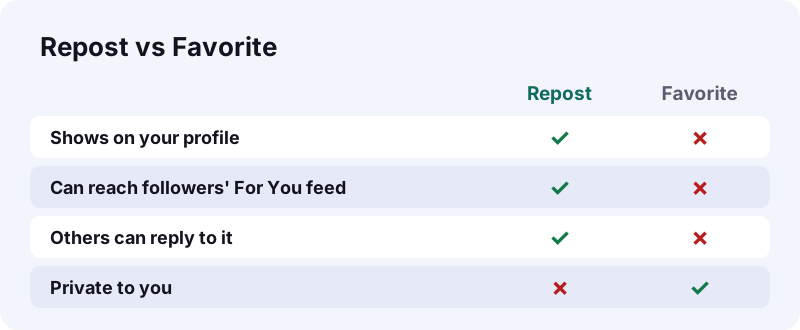
A repost shares someone else's post with your followers on their For You feed, labeled with your profile photo and nickname. TikTok's Repost help page says it appears like any other post in the feed, just tagged as a repost by you.
The idea is older than TikTok. Wikipedia's article on reblogging describes it this way:
“Reblogging (or, in Twitter parlance, retweeting) is the mechanism in blogging which allows users to repost the content of another user's post with an indication that the source of the post is another user.”
Repost, share or Favorite?
| Action | Who sees it | Where it lives | How to undo |
|---|---|---|---|
| Repost | Your followers, and others if you are public | Your profile's Repost tab | Delete repost or Remove |
| Share | The person or app you send it to | A chat or another platform | Depends on that app |
| Favorite | Only you | Your Favorites collection | Managed in Favorites |
Before you remove a repost: a 4-point check
Before any remove repost TikTok step, take ten seconds to check a few things, because removing a repost is not just cosmetic. Replies go with it, so if a friend wrote something you want to keep, screenshot it before you tap.
- Are you on the right post? Reposts of the same video by friends look alike.
- Do you want to keep any replies? They will be deleted.
- Would changing your account to private be enough?
- Is your TikTok app up to date? Old versions may hide buttons.
How do you undo a repost from the Share button?
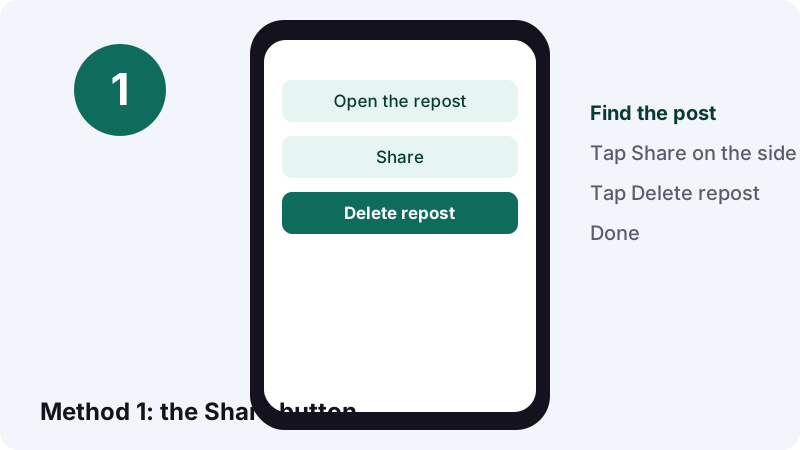
Go to the post you reposted, tap Share, and choose Delete repost. It mirrors how you added the repost in the first place: the Share sheet holds both buttons.
- In the TikTok app, open the post you reposted.
- Tap the Share button on the side of the post.
- Tap Delete repost.
- Works on phones and tablets.
- Takes three taps.
- Removes the repost and its replies.
Tip: if you cannot find the post in your feed again, skip ahead to the Repost tab section. Opening the post from your own profile is the fastest way back.
Can you remove a repost by pressing and holding?
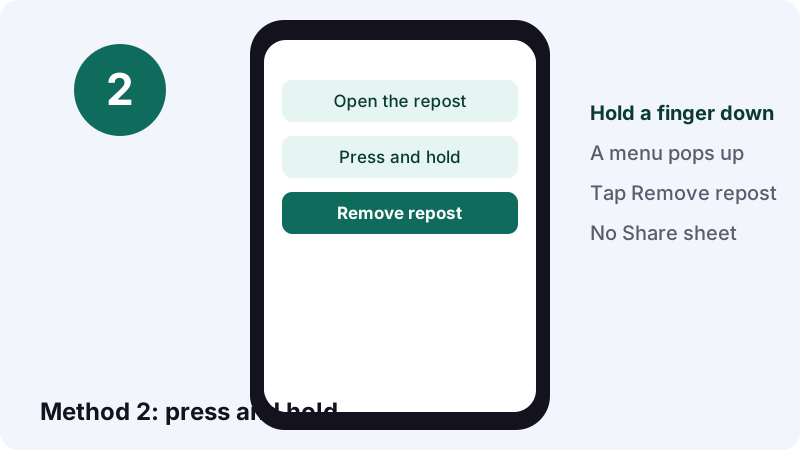
Yes. Press and hold on the video, then tap Remove repost. It skips the Share sheet entirely, which makes it handy when you are scrolling with one hand.
- Open the post you reposted.
- Press and hold anywhere on the video.
- Tap Remove repost in the menu that appears.
- No Share sheet needed.
- Good for one-handed scrolling.
Why the label changes
TikTok's own help uses "Delete repost" for the Share route and "Remove repost" for the long-press route. Same result, different wording, so don't worry if your screen does not match a friend's description word for word.
What does tapping your profile photo on a repost do?
On a reposted post, your profile photo appears at the bottom. Tap it, then tap Remove. This route also shows the photos of friends who reposted the same content.
- Open the post you reposted.
- Tap your profile photo at the bottom of the post.
- Tap Remove.
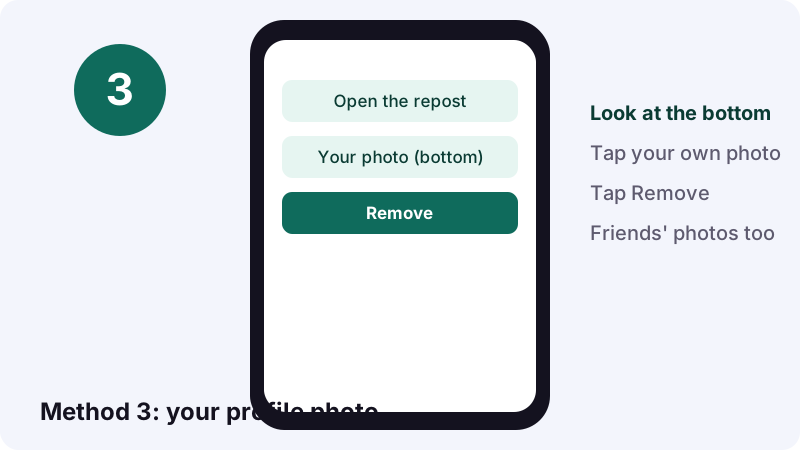
- Shows your photo first.
- Friends who reposted appear beside you.
When a friend reposted it too
You will see their photo beside yours. Make sure you tap your own photo. You can only remove your repost, not theirs; a friend's repost is theirs to manage.
Which removal method should you pick?
Pick whichever button is closest to your thumb. All three remove repost TikTok routes take off the same repost, and all three delete its replies. The table helps when one route is not showing for you.
| Method | Where you start | Button you tap | Handy when |
|---|---|---|---|
| Share button | Side of the post | Delete repost | You already know the Share menu |
| Press and hold | Anywhere on the video | Remove repost | Scrolling one-handed |
| Profile photo | Bottom of the post | Remove | Friends reposted it too |
- Share route: three taps, no guesswork.
- Long press: fastest from the feed.
- Profile photo: best for seeing who else reposted.
Where do you find the posts you reposted?
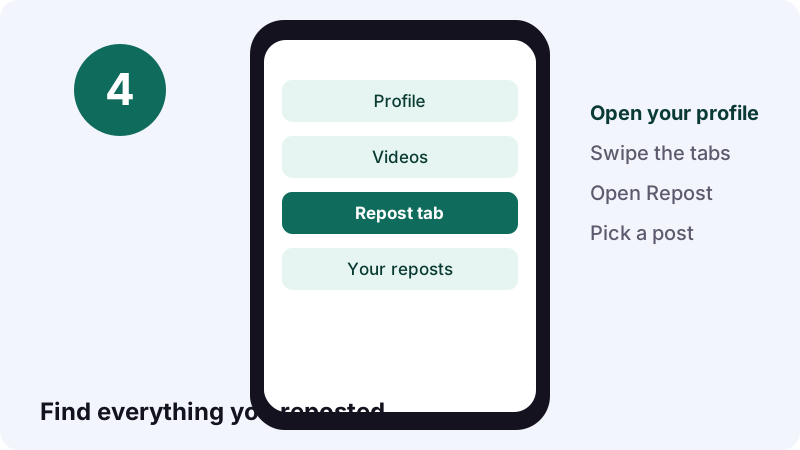
Look in the Repost tab on your own profile. TikTok's help says everything you repost is collected there, so it doubles as your cleanup list.
- Tap Profile.
- Swipe or tap across the tabs above your posts.
- Open the Repost tab.
- Tap a post, then use any of the three methods above.
Finding one repost among many
If you are hunting a single post from weeks ago, remembering the creator's name and checking their profile can be quicker than scrolling your tab.
What happens to replies when you remove a repost?
They are deleted. TikTok's Repost page says that after you remove a repost, all related replies are also deleted. There is no option to keep the conversation and drop the repost.
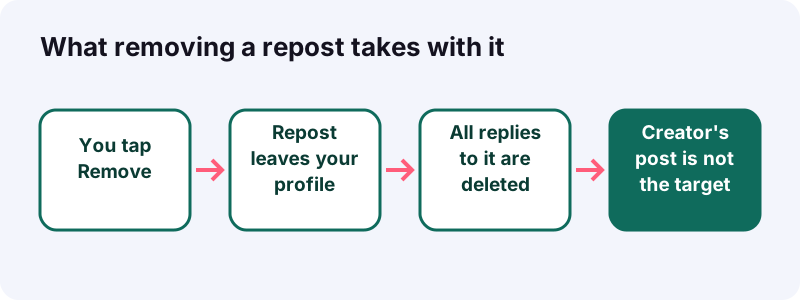
Replies are a special case in another way, too. Your normal comment filters do not cover them:
“Keep in mind that your comment privacy settings don't apply to repost replies.”
What stays untouched
- The creator's original post.
- Your own likes and Favorites.
- Copies anyone already saved elsewhere.
How do you delete one reply without removing the repost?
Open the repost, tap your profile photo at the bottom, press and hold the reply, then tap Delete. The repost stays, and only that reply disappears.
- Open the post you reposted.
- Tap your profile photo at the bottom.
- Press and hold the reply you want gone.
- Tap Delete.
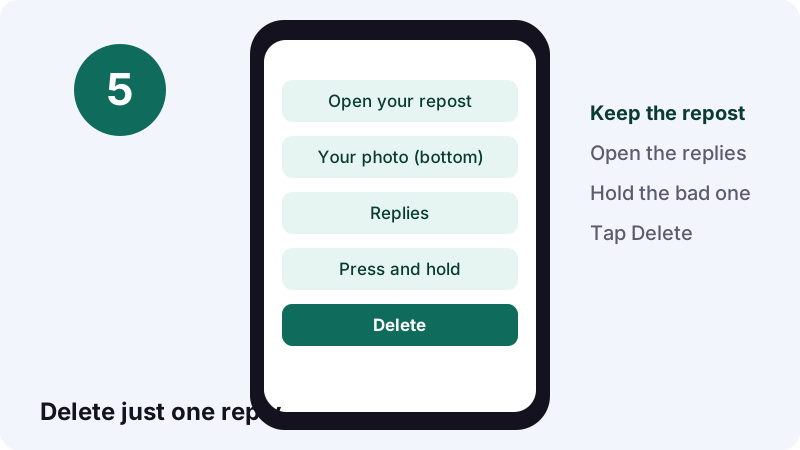
This is the better move when the repost itself is fine and one person wrote something rude. Since comment filters do not apply here, deleting by hand is the tool you have.
Who can see your reposts?
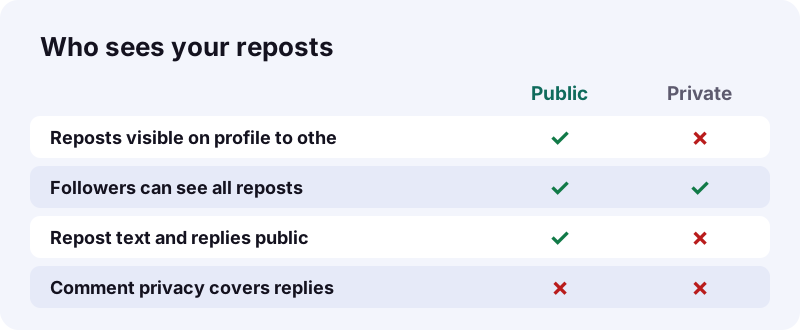
Your account type decides it. On a public account, your reposts, repost text and repost replies are visible to others on your profile. On a private account, only your followers can see your reposts on your profile and in their For You feed.
| Public account | Private account | |
|---|---|---|
| Reposts on your profile | Visible to others | Followers only |
| Reposts in For You feeds | Can appear | Followers' feeds |
| Repost text and replies | Visible to others | Followers only |
| Comment privacy on replies | Does not apply | Does not apply |
A quick public-account reminder
People who can see your repost can reply to it. If you keep a public profile, assume a repost works like a small public post of your own.
Can you hide reposts without deleting them?
Going private is the closest thing; see TikTok's note on private-account reposts. It limits all your reposts to followers, but it changes much more than reposts, so weigh the trade-offs before switching.
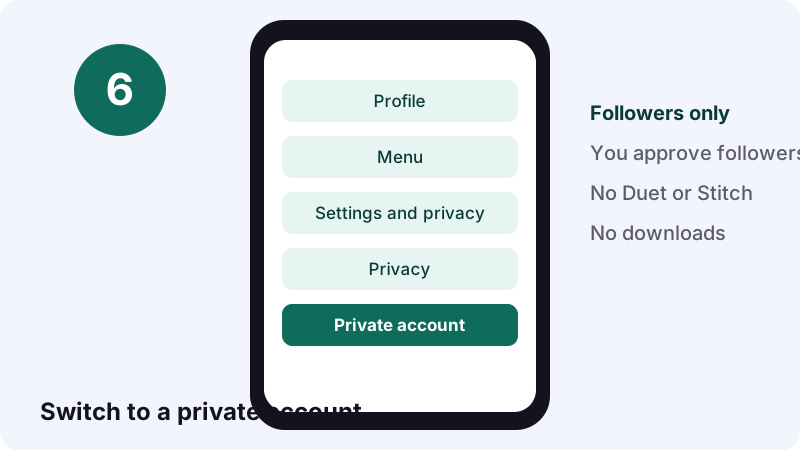
- Tap Profile, then the Menu button.
- Tap Settings and privacy, then Privacy.
- Turn Private account on.
What else changes when you go private
According to TikTok's private vs public account page, you approve who follows you and who watches your videos, and people can no longer Duet, Stitch or download your posts. Your name, username and profile photo stay visible to everyone.
Why is the Remove repost option missing?
When a remove repost TikTok button will not show, it is usually an outdated app or a temporary glitch. TikTok's troubleshooting page recommends restarting the app and your phone, updating to the latest version and clearing the cache. It also says some features are tested with a limited number of users.
| What you see | Likely reason | Try this |
|---|---|---|
| No Delete repost in Share | Older app version | Update TikTok |
| Menu freezes or closes | Temporary glitch | Restart the app and phone |
| Buttons look different | Feature still rolling out | Use another of the 3 methods |
| Post won't load | Weak connection | Switch Wi-Fi and mobile data |
Update TikTok on iPhone
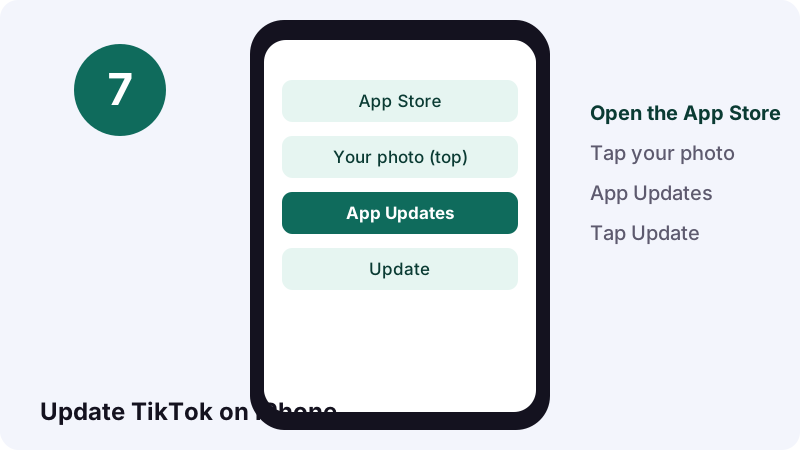
Apple's App Store guide: open the App Store, tap your account photo at the top, tap App Updates, then tap Update next to TikTok.
Update TikTok on Android
Google Play's update guide: open the Play Store, tap the profile icon at the top right, tap Manage apps & device, then under Updates available tap See details and Update.
Clear the TikTok cache
- Tap Profile, then the Menu button.
- Tap Settings and privacy.
- Tap Free up space, then Clear next to Cache.
Can you remove a repost on a computer?
TikTok's Repost help describes the remove steps in the TikTok app only. We could not confirm a desktop route from TikTok's own pages, so for any remove repost TikTok job the reliable answer is to grab your phone or tablet and use one of the three methods.
- Phone: all three methods are documented.
- Tablet: use the TikTok app the same way.
- Browser: not covered by TikTok's Repost help page.
Is there a way to clear every repost at once?
There is no bulk remove repost TikTok option, according to TikTok's help. The Repost page explains how to remove one repost at a time and mentions no bulk option. If you have dozens, a steady routine through the Repost tab is the practical way.
A cleanup routine that doesn't take all night
- Open your profile and the Repost tab.
- Open the top post and use press-and-hold > Remove repost.
- Go back to the tab and open the next one.
- Repeat, taking a break every 20 or so.
Be wary of any app that offers to remove every repost for you in one go. It would need your TikTok login, and handing that over is a bigger risk than an hour of tapping.
Three real moments when people undo a repost
Most unreposts come down to timing, taste or a slip of the thumb. A few short examples show which method fits each moment best.
The thumb slip
You meant to Favorite a recipe and hit Repost. Long-press the video and tap Remove repost while you're still on it. Done in two seconds.
The joke that aged badly
A repost from last year no longer reflects you. Find it in your Repost tab, check whether any replies are worth a screenshot, then remove it.
The job search
Before an interview, you want a tidy profile. Work through the Repost tab with the routine above, or switch to private while you decide.
| Moment | Fastest method | Watch out for |
|---|---|---|
| Accidental repost | Press and hold | Nothing, it's brand new |
| Old repost you regret | Repost tab + Share | Replies you want to keep |
| Profile cleanup | Repost tab routine | No bulk option exists |
Want to keep the video after you unrepost it?
Removing a repost does not give you a copy. If the creator allows downloads, the Share menu has a Save video option. For public posts, you can also paste the link into Tiktokioo.net and get an MP4 without the watermark.
TikTok's Sharing page notes that only posts with download permissions turned on show Save photo or Save video. If that button is missing, the creator chose to switch it off.
- Video: paste the link on our home page.
- Just the sound: use the TikTok MP3 converter.
- Photo slideshow: try TikTok photo download.
- A public Story: use TikTok story download.
Keep copies for yourself, and ask before re-uploading. The U.S. Copyright Office's Fair Use Index explains that fair use permits unlicensed use only in certain circumstances, so a download is not automatic permission to repost it as your own.
Why a repost travels further than you'd think
A repost lands in other people's For You feed, on an app with a very large audience. Wikipedia's TikTok article reports close to 800 million monthly active users in July 2020 and 1 billion users by September 2021.
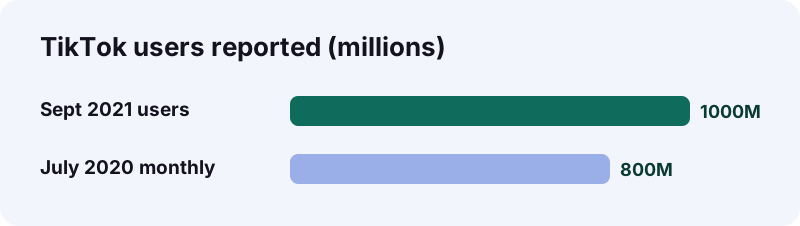
That reach is the reason to check what you repost, and the reason the remove repost TikTok steps above are worth knowing by heart.
More guides you might need
These pages cover the questions that usually come right after cleaning up reposts. For downloads, start at the Tiktokioo.net downloader.
Questions people ask
How do I remove a repost on TikTok fast?
Press and hold the reposted video, then tap Remove repost. You can also use Share > Delete repost, or tap your profile photo at the bottom > Remove.
Do replies survive when I remove a repost?
No. TikTok says all related replies are deleted when you remove a repost.
Where is my Repost tab?
On your own profile, among the tabs above your posts. TikTok says reposted content is listed there.
Can I hide reposts instead of deleting them?
Switching to a private account limits your reposts to followers. It also turns off Duet, Stitch and downloads for your posts.
Do my comment filters apply to repost replies?
No. TikTok states that comment privacy settings don't apply to repost replies, so delete unwanted ones by hand.
Is there a bulk option to remove all reposts?
No bulk remove repost TikTok tool is described. TikTok's Repost help describes removing reposts one at a time and mentions no bulk option.
Why don't I see Delete repost?
Update the TikTok app, restart it and your phone, and clear the cache. If one route is missing, try the long press or the profile-photo route.
Can I unrepost from a laptop?
TikTok's Repost help only documents the steps in the app, so use your phone or tablet for a reliable result.
Does removing my repost delete the creator's video?
No. You only remove your repost. The creator's post is theirs and stays where it is.
How can I keep the video after removing the repost?
Use Save video if the creator allows downloads, or paste a public link into Tiktokioo.net for an MP4 copy, and respect the creator's rights.
Guides
Downloader — Save a public TikTok as a clean MP4, no logo.
Sources
- Repost — TikTok Help Center
- Sharing on TikTok — TikTok Help Center
- Choosing between a private or public account — TikTok Help Center
- Troubleshooting on TikTok — TikTok Help Center
- How to manually update apps from the App Store — Apple Support
- How to update apps on Android — Google Play Help
- Reblogging — Wikipedia
- TikTok — Wikipedia
- Fair Use Index — U.S. Copyright Office